
Published October 1, 2026 · 8 min read · A daily, weekly and monthly routine that keeps every server healthy
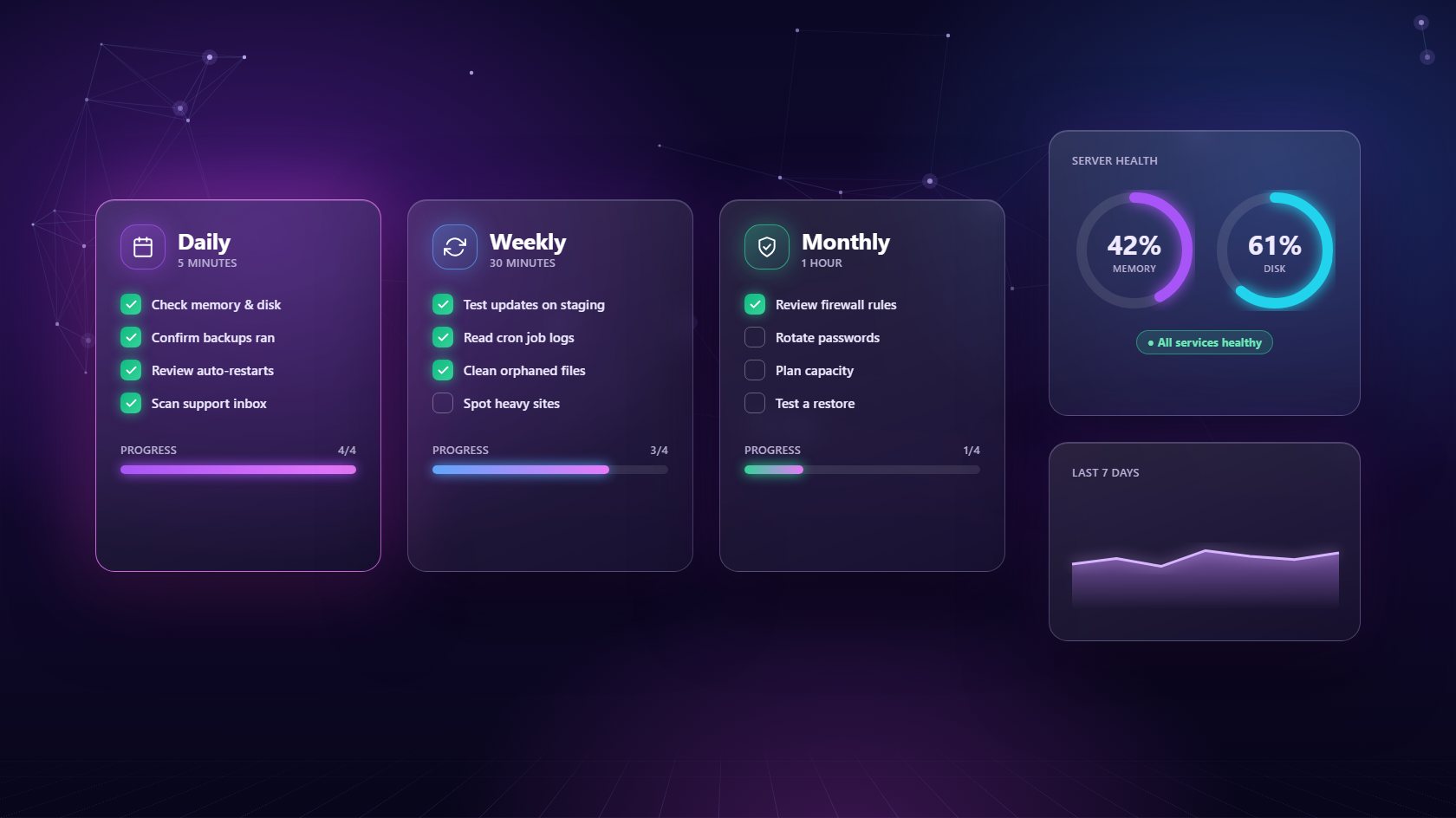
Setting up a server is the easy part. Keeping it healthy month after month is where most problems start. Updates get skipped, backups quietly fail, and disks fill up without anyone noticing. A VPS management panel turns that ongoing care into a simple routine you can actually stick to. In this guide, we'll walk through the daily, weekly and monthly tasks that keep a VPS running smoothly, and how a good panel makes each one quick and painless.
You can manage a VPS entirely over SSH, and some people enjoy it. But manual management depends on one person remembering every command, every config file and every check. It works until that person is busy, sick or on holiday - and then small issues pile up into big ones.
A VPS management panel makes server care consistent. Tasks like restarting a service, checking disk space, rotating a database password or scheduling a backup happen the same way every time, from a dashboard anyone on your team can learn. The panel also does a lot on its own: it watches services and restarts them if they crash, renews SSL certificates, and runs backups on schedule. That doesn't mean you stop paying attention. It means your attention goes to the things that genuinely need a human decision, instead of routine chores a machine can handle better. For a busy agency, that shift alone can save several hours every single week.
Your daily routine should be short enough that you actually do it. Open your VPS management panel each morning and glance at the live memory and disk charts for every server. You're looking for anything unusual - a memory line that's suddenly much higher than normal, or disk usage that jumped overnight.
Next, check that last night's backups completed. A backup you assume is running is not the same as a backup you know is running. Then skim the support inbox for anything urgent from clients, especially messages about slow or broken sites. If the panel shows that a service restarted automatically during the night, take a minute to find out why. It might be a one-off, or it might be an early sign of a plugin with a memory leak. That's it. Five minutes and a cup of coffee, and you start each day knowing your servers are healthy - instead of finding out from an unhappy client later. Consistency matters far more than depth here.
Once a week, set aside half an hour for deeper care. Start with updates. Use staging sites to test WordPress core, plugin and theme updates before pushing them live, so a bad update never reaches a client's real site. Your VPS management panel should make creating a fresh staging copy a one-click job.
Next, review cron job logs for any scheduled tasks that failed. Failed cron jobs are easy to miss and can quietly break things like newsletter sends, order exports or cache clearing. Then look for clutter: old staging sites nobody uses, test databases, or leftover resources from failed builds. A good panel can find orphaned resources for you, so you can remove them safely. Finally, check which sites are using the most resources. If one site keeps growing, it may need a bigger plan or its own server soon. Catching that early lets you have a calm conversation with the client instead of an emergency one later, when everyone is stressed.
Monthly tasks are about the bigger picture. Start with security. Review the firewall rules in your VPS management panel and remove anything that's no longer needed, like a temporary rule you added for a contractor. Rotate passwords for important database users, and remove access for anyone who has left the team or finished their project.
Then look at capacity. Compare this month's memory and disk trends with last month's. Steady growth is normal, but if a server is regularly above eighty percent, plan an upgrade or a second server before it becomes urgent. Finally, test a restore. Pick one site, restore it from backup into a staging copy, and confirm it works. This is the single most valuable check you can do, because it proves your backups can actually save you. It only takes ten minutes, and it turns "I think we're covered" into "I know we're covered". Write down any problems you find and fix them before the next review.
Even with a great routine, things will go wrong sometimes. A site goes down, a server becomes slow, or a client reports something strange. The difference a VPS management panel makes is that you can respond calmly, with everything you need in one place.
Start by checking the server's live status and resource charts. If the server is unresponsive, you can reboot it from the panel and watch it come back online step by step, with database services restarted automatically. If a single site is the problem, check its logs, its PHP version and any recent changes. If an update caused it, restore the site from last night's backup and investigate on staging instead of on the live site. Keep clients informed with short, honest updates through the support inbox. Afterward, write a quick note about what happened and how you fixed it. Over time, those notes become a playbook that makes the next incident easier. Our guide to handling client site emergencies covers this in more depth.
It gives you a dashboard to run and maintain a VPS: monitoring memory and disk, restarting services, scheduling backups and cron jobs, managing firewall rules and databases, and rebooting the server - all without typing commands.
A five-minute look at resources and backups each day, a half-hour of updates and cleanup each week, and a monthly review of security, capacity and a test restore covers almost every server.
Many common ones, yes. A good panel restarts crashed services on its own, renews SSL certificates, and brings database services back up after a reboot, so most small failures resolve before anyone notices.
Live charts, auto-healing services, scheduled backups and one-click restores in one VPS management panel.
Explore Server Tools