
Published September 25, 2026 · 7 min read · The dashboard between you and your server, explained without the jargon
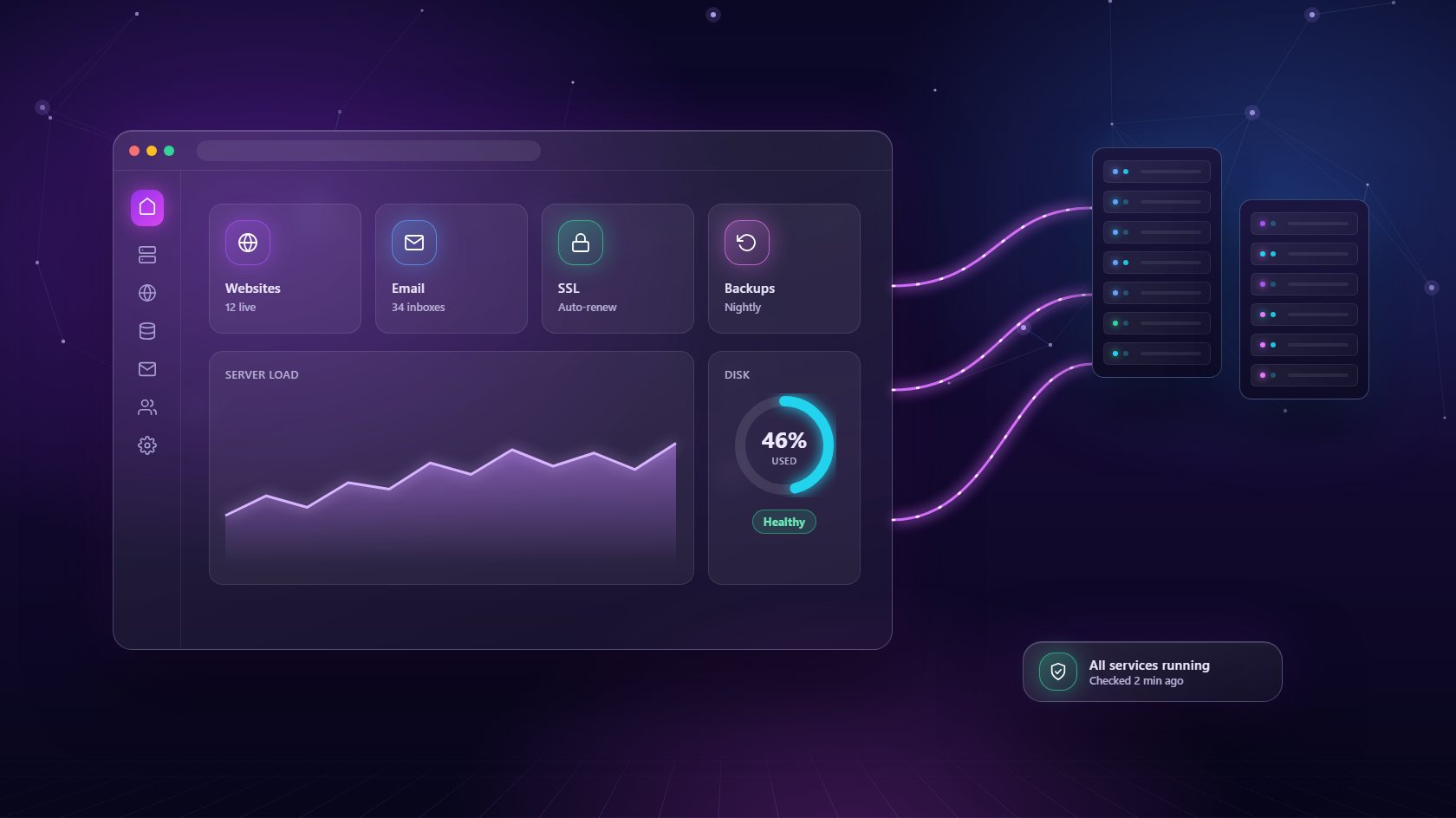
If you have ever logged into a website dashboard to add an email address, install WordPress or renew an SSL certificate, you have already used a hosting control panel. It's the screen that sits between you and the server, and it turns jobs that would normally need a command line into a few simple clicks. This guide explains what a hosting control panel is, how it works, the main types you'll come across, and how to choose one without getting lost in the jargon.
Every website lives on a server, which is just a computer that stays switched on and connected to the internet. Out of the box, that computer doesn't know how to serve a website, send email or store a database. Someone has to install the right software and keep it configured. A hosting control panel is the tool that does that work for you, then gives you a friendly dashboard to manage it.
Think of it like the dashboard in a car. You don't need to understand how the engine burns fuel to drive to work - you press the pedal and turn the wheel. In the same way, a hosting control panel lets you create a website, add a domain, set up a mailbox or take a backup without knowing the exact commands behind each task. For most people, it's the difference between owning a server they're afraid to touch and running websites with confidence. It also keeps things consistent, because the panel does each task the same way every time, which means fewer mistakes and fewer surprises.
When you click a button in a hosting control panel, the panel translates that click into instructions for the server. Creating a new website, for example, usually means making a folder for the files, writing a web server configuration, creating a database user and requesting an SSL certificate. Done by hand, that's a long list of commands and config files. The panel runs all of it in the background, in the right order.
Most modern panels connect to the server over SSH, a secure remote connection, or run a small agent on the machine itself. They also keep watching the server after setup is done. Good panels track memory and disk use, restart services that crash, renew certificates before they expire and run scheduled backups. That ongoing care matters just as much as the first install, because a server that is set up well but never looked after slowly drifts into trouble. The best hosting control panel is one you mostly forget about, because it quietly keeps everything healthy while you get on with real work.
Not every hosting control panel is built for the same person. Broadly, they fall into three groups. The first is the classic shared hosting panel, like the one a hosting company gives you when you buy a cheap plan. It's simple, but you only control your own small corner of a server you share with strangers.
The second group is the server panel, designed for one owner managing a whole VPS or dedicated server. These give you far more control over web servers, PHP versions and databases, but they usually stop at the technical side. The third group is newer: panels built for agencies and resellers. These combine server management with the business tools you need to host other people - separate client logins, hosting plans, invoices and white-label branding. If you only run your own blog, the first or second type may be enough. If you host websites for clients, the third type saves you from stitching together three or four separate tools just to run a small hosting service.
If you run a single website on a managed platform like a website builder, you probably don't need your own hosting control panel - the platform already hides the server from you. The same is true if you're a seasoned Linux administrator who enjoys doing everything from the command line and only looks after one or two machines.
Almost everyone else benefits from one. Freelancers who build sites for clients, web design studios, marketing agencies and small businesses that run several sites all hit the same wall: the manual work grows faster than the number of websites. A hosting control panel removes that wall. It means a junior team member can safely add a mailbox, a designer can launch a staging copy, and the owner can see at a glance which sites use the most resources. It also means you're not dependent on one technical person who holds every password and every setup step in their head. That alone is worth a lot when that person is on holiday.
Start with the basics. The panel should support the kinds of sites you actually build, whether that's WordPress, Laravel, plain PHP or Node.js. It should include free SSL, automatic backups you can restore with one click, and real isolation so one site can't affect another. Look for clear resource monitoring too - you want to see memory and disk problems before your visitors do.
Then think about the next two years, not just today. Will you be hosting clients? If so, you'll want client accounts, hosting plans and billing built in, plus a dashboard you can brand as your own. Check how pricing works as you grow: per-account pricing can quietly double your costs, while a flat price per server stays predictable. Finally, make sure you can leave. A good hosting control panel like NextaPanel runs on a server you own, so if you ever disconnect it, your server and your sites are still yours. For a deeper checklist, read our guide to choosing a hosting control panel.
A hosting control panel is a web dashboard that lets you manage a server and the websites on it without typing commands. You can create sites, add domains, set up email, take backups and install SSL certificates with a few clicks.
Some are free and open source, while others charge per server or per account. Free panels often cost more in time and add-ons, so compare the total cost - including backups, support and any client billing tools you would otherwise need separately.
Most panels need a fresh Linux server. NextaPanel, for example, works with any Ubuntu 22.04 or newer VPS from any provider - you connect it over SSH and the panel sets everything up automatically.
Connect a server you already own and manage every site from one clean dashboard.
Explore the Features